Sunday, July 14, 2013

Our History With A 1:1 Netbook Program Using BYOD

How Our Program Developed

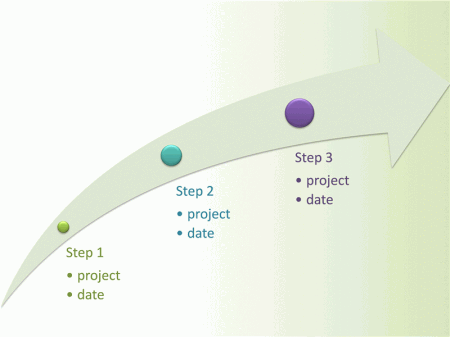
3-step timeline
History of 1:1 At Our School
Our 1:1 program began with netbooks. We chose them because they're inexpensive. We went with BYOD—bring your own device—because we wanted parents to share in the expense and responsibility of their child's learning experience. A computer is one of their main learning tools at our school. If we had to provide computers for each child—even inexpensive netbooks—we'd probably still be talking about being a 1:1 school instead of celebrating our third year with a 1:1 learning program!

Instead, we installed the wireless infrastructure, courtesy of a generous donor, and suggested to our parents that they give their fifth grader a netbook for Christmas during our pilot year. We started a 1:1 program in January! We knew that most parents in our student body would easily spend $300 on iPods, video games, and similar gadgets. If we had a different clientele, we couldn't have done this, of course. We're blessed in that regard.

It was pretty much that easy. We did get a small amount of pushback from our families, but it was much less than expected. For the most part, our families support the decisions we make, and most families see the benefit of putting laptops into the hands of our students. After our 5-month pilot program we simply put the netbooks on our school supply list for the following August. We also opened it up to grades 5-8 and have been doing that ever since. It's been several years now and we publish an updated list of suggested netbooks or small laptops each year before school starts. Parents may purchase anything that meets our minimum standard. Starting in 2013-2014 we will be asking parents of fourth grade students to bring a netbook to school after Christmas break. They learn to touch type in the first half of the year and will then have a full semester using a netbook, armed with their new keyboarding skills.


Preparations and Pilot Program

We did several things before implementing our full 1:1 program. First, I purchased a netbook of my own and started to test its capabilities several months before we began. I found I was able to do most of my usual work just fine, even with the smaller (92% of full size) keyboard. The 250 Gb hard drive was never a problem, and the 2 Gb of RAM and low-end Intel processor, though slow, was very functional. I threw everything at it that I thought we might want to use and found I could do pretty much all of it. It wasn't as snappy as my MacBook Pro, but it got the job done with no real problems. The software requirements, as I'll describe them later, were pretty basic and help support a fairly traditional elementary and middle school curriculum.

After I spent a few months with my own netbook, we started our Spring pilot program. During that pilot my principal purchased netbooks for all the teachers in grades 5-8 so they could experience first-hand what the kids were experiencing. I discovered pretty quickly most of the pitfalls of starting a netbook program. The beginning of each school year, it turns out, is the most difficult and labor-intensive for parents, students and teachers as the netbooks are set up and put through their paces. Most of the students haven't used a netbook before and have to be taught how to do basic maintenance of their hardware and software.

Finally, we spent some time as a staff reflecting on and evaluating the pilot program. We used what we learned to tweak and improve before implementing a full 1:1 program the following August in grades 5-8. That's what we've been doing for several years now, tweaking each summer prior to the coming school year.


Adjustments

After a couple years we realized that we were spending most of semester one during fifth grade just getting up to speed. We decided fairly soon into the program to move our touch typing program down from semester one of fifth grade to semester two of fourth grade. We had used Alphasmart Neos in fifth grade for several years prior to our netbook program. So, we moved the Neos down to fourth grade and taught touch typing with the Neo's built-in typing tutor. It is a no-frills, 15-lesson course that has the kids touch typing like a secretary by the time they get to lesson 15. This past year we moved that course into second quarter so the children are functional typists by around January or February. That gives us a few months to provide the children with practice projects involving lots of typing—stories and projects involving research and plenty of writing.

In addition, this school year we've introduced several of our main software tools to the fourth graders in a lab setting. That way, when they have their own netbooks in the summer or in August just before fifth grade starts, they will have had a chance to at least try out the applications we use most often during the school day. These applications include Open Office and Google Apps for offline-individual and online-collaborative work, respectively. I'll say more about these and other tools later on in this series of articles.


Future Plans

At this moment I don't know what the future will look like. One of the reasons I'm writing this series of articles during the Summer of 2013 is because I want to reflect on the past 3 years. The other reason is because I'm hoping, upon reflection, to have some idea of the next logical step in our netbook program. Stay tuned for more!


credits: image courtesy Free Powerpoint Templates

Saturday, March 23, 2013

Why 1:1 (Digital vs Analog Learning Tools)?

Analog or Digital?

I read an article recently about sound and audio. The article describes analog as being different than digital when making sound:
The clock example [explains] the differences between analog and digital audio. An analog clock is a continuously flowing representation of the time of day. The hands move smoothly around the clock providing an analogy of the time. A digital clock uses distinct or individual digits to describe the time – it is not smooth flowing, but is characterized by discrete numbers that tell the time.
Pencils, paper, books and binders are often referred to as analog tools of learning. They provide an analogy of the traditional learning process we've used for over 100 years—reading to gain knowledge, writing to express what you've learned, and storing all these learning artifacts in an organized place for later retrieval to review or submit for assessment. This learning management system has served us well for a very long time, and some think it is sufficient as a system of learning even in the 21st Century in spite of all the new tools we have at our disposal and all the hype about them. So, why should we spend hundreds and thousands of dollars on digital tools? A smooth-flowing pencil glides across paper and effortlessly produces words and pictures as an expression of the writer's or illustrator's creative thoughts and ideas.

A digital toolbox, on the other hand, usually involves a list of items topped by a personal computer. Laptop computers run on batteries, use an electronic system of storage and retrieval with an infrastructure made from groups of distinct numbers—1s and 0s. Stored knowledge is organized and retrieved in nanoseconds with a few keystrokes. Besides speed, why is this learning management system so much better than the time-honored tools of our past? These discrete numbers must be stored and retrieved in exactly the same form, or the on-screen results will only be a jumbled mess. Ask anyone whose computer refuses to boot up properly. A dead battery puts a digital learner out of business, because now he has only 0s—no 1s to fill the digital patterns and bring the laptop screen to life. There are many other digital downsides to contend with if you want to learn with digital tools. Why bother?

I've written elsewhere about the downside of either-or thinking about learning tools. There's plenty to like, and hate, about both digital and analog versions of a learning management system for students and teachers. If we're to represent and share what we know and want to teach, and students are to demonstrate what they've learned, then we are going to need some kind of system for doing this. Which one is best?

After working with kids in a 1:1 laptop environment for several school years, I've concluded that the best learning management system is the one that a kid will use consistently and efficiently to support his learning! Despite the myth that all kids these days love technology and want to learn with laptops, cell phones, iPods, iPads, and more, I've discovered more than a few who get tired of using their computer in school. Granted, many of these students are tired of school, period. I'm writing this in the Spring, when we're all just looking forward to Break. 

If I permit my students to play games on their netbooks, they're all in. But, if I ask them to open their netbook and continue their research on the in-progress research project, I get groans. Some will say that I'm not doing it correctly. We must let kids pick their own topics, explore what interests them, and then they'll explore to their heart's content. However, it's part of my job to introduce, to deliver or to help kids "discover" certain material as part of their time spent with me. I'm in the business of teaching, not making waves and trying to change an existing system. I'd rather spend my time finding ways to motivate kids to learn the prescribed material, and I'll leave the task of lobbying for change in curriculum and instruction to those who enjoy that sort of thing. So, now I'm back to my search for a learning management system that is used consistently and efficiently by most of the children in my class.

As a side note, written at the end of the school term in June, I'm reflecting on an end-of-year project my students participated in that gave them the option of working with whatever topic they wanted and sharing their topic with the class. Even when the topic was self-chosen, several students "dropped out" before they finished because they encountered obstacles and difficulties. It's a myth that kids will always work diligently when they are in control of what they're learning. At least at the end of the school year, some kids just run out of steam no matter what carrot you dangle in front of them!


I've taught many children who seem to learn more efficiently, and stick to it more consistently, if they are allowed to use primarily analog tools. Give them pencil and paper, a binder or folder to keep it all organized, and they're happy. They started with this learning management system in preschool, perfected it in kindergarten and first grade, and it's the system they know and love. They're comfortable in school, they like to organize and sort, they jump on their assignments and do them well. When it's time to turn assignments in, they're first in line. They walk in the door at 7:45 am, open their backpack, put their binder on their desk and find their "turn in" folder quickly. Out comes the half-dozen papers they worked on diligently starting yesterday during class when others were fooling around, and finished after dinner at home. They've developed habits that include putting these papers back into the "turn in" folder as soon as they finish, so they know where to find them the next day when it's time to deliver the goods. They believe in and follow the age-old adage "A place for everything, and everything in its place." Why would a teacher or a school system want to upset an applecart like this? It just works!

This May I listened to one student describe her preference for analog tools in a five-minute dissertation to the whole class. She spoke of the many benefits of analog tools, including the fact that you don't have to wait for them to boot up!


Making the Transition From Analog to Digital

When I teach fourth and fifth graders to use computers I use the analogy of pieces of paper, manila file folders, and a drawer to hold them all. I go back and forth between the "desktop" of my old wooden desk and the desktop of my Mac or Windows computer. I try to demonstrate that the things in our analog learning management system—paper, pencil, folder, binder, desk—correspond to similar things in our digital learning management system. Some kids sit through this lesson patiently for about 5 minutes, then quickly become bored because they already know this stuff. They grew up with the digital and when I pull out a manila file folder they frown at me as if to say "what's that thing?!"

Others, however, stick with me because they want to make the connections between the analog and the digital worlds. Their parents may not have given them early or easy access to a computer as they were growing up. Instead, they played outside with balls, bats, and bikes. Their TV time was limited. They talked to their family members instead of developing carpal tunnel syndrome with a mouse or computer game. Now, this teacher is demonstrating all sorts of gee-whiz toys and tools that they've certainly seen before—after all, Mom has one—but they've only had limited access to it. Many of these kids are organized users of an analog learning management system, they have been since preschool. Now they're anxious to learn a whole new system of learning management. The idea of using a laptop in school every day appeals to them. 

Once I show them where to click, where to look for this menu or that, they take to the new world of digital learning tools with ease because they're organized to begin with. They're eager to try new gee-whiz tools, and this motivates them to pay attention and do well with the new tools. Frankly, these analog-organized children are often easier to work with than the ones who seem to have grown up with a computer mouse in their hands. 

The mouse-wielding children suffer from what I call "clicker's disease". They're already familiar with the speed at which a computer normally runs. So, when their printout doesn't come popping out of the printer, they click again and again and again! It's hard to break them of this habit, which is why we usually don't print in our computer lab. Delayed gratification isn't one of the characteristics of these kids. They tend to jam up the print spooler with their multi-page documents—1 page of text and 30 blank pages caused by pressing and holding the Enter key while messing with the computer of the kid who sits next to them. So, their document is in the spooler 30 times, holding up everyone else's print jobs. Guess what the other children, waiting for their printout to magically appear too, are doing while waiting? You guessed it, they're clicking on Print, again and again. True story. We don't print anymore in a lab setting.

So, back to the question, why would an intelligent teacher or a school system choose this sort of chaos over the use of analog tools that don't jam and don't need batteries? After all, if it's not broke why fix it?

Here's why. As mentioned earlier, these new whiz-bang tools are fast. They're up-to-date. They let me look up an unknown word right within the online text I'm reading. There are so many digital tools available for free download or to purchase with minimal dollars. They all make the digital toolbox more complete. How many times have I had a kid walk up and ask me, "What does this word mean?" Previously, I would direct him to the "red book on the shelf over there"—the dictionary—or tell him the story of when I joined the Look It Up Club as a fourth grader and got all these cool doodads like a pen and a lapel pin just for joining. I was hooked on the idea of looking up words I didn't know and have been doing it ever since. Today, kids look at me like I'm from another world. Indeed, I am!

So, now I offer them a just in time mini-lesson instead on how to install Google Dictionary in their copy of the Google Chrome browser. As a Google Apps school, this is just one of the free digital tools we use on our netbooks to make our learning more efficient and fun! Now, I show a child he can double-click on a word in his browser window and like magic the definition pops up. One student recently asked me, "Can you click on a word within the definition, one that you don't know, and find the definition to that word, too?" 

"I don't know," I said. "Let's see... Wha'dya know, it works!" We all learned this together, live and in color.

I confess I'm a digital learner, but I still use analog tools. The picture above is from my home office desktop. I've used my ScanSnap scanner to reduce all the paper clutter in my office to digital files I can quickly find with a search of my Evernote account. I can do this from my Mac Mini, my Macbook Pro, my iPhone, iPad, netbook, or anywhere I can find a computer connected to the Internet. Everything is in PDF format and I run it all through OCR (optical character recognition) for easy capture, storage and retrieval. No more paper.

The same picture shows a pad of sticky notes, a mini legal pad and a pencil. I use all of these tools too, because sometimes it's just easier to grab a Bic Soft Feel Med. pen and jot down a quick note, phone number, or whatever. I may later scan the note into Evernote rather than re-writing the information on a keyboard. It's a toss-up as to which method is quicker for capturing a thought. Should I scan or type? Either way, I move analog to digital for storage and later retrieval. Why would I take the time to convert analog to digital? Here's why: I recently discovered that some of the printed receipts I've kept since 1998 to support my tax return have faded and are no longer legible. That doesn't happen with a digital representation of the same information! In addition, I can type "$1,298.48" into Evernote and find proof of purchase within seconds. I can't do that with a paper-based (and possibly faded) document.

So, analog or digital for students in the classroom? I say use both. Use them to their maximum advantage. For me, learning how to do that is a lifelong process. In my classroom I model a willingness to change how I learn, and how I manage my learning. When the old ways aren't as efficient or effective as the new ways that pop up every day, I try to use the new ways. I'll have more to say about making the transition from analog to digital later in this series.

Wednesday, August 22, 2012

2012-2013 Begins

I have a nice group of 22 fifth graders this year. Our first day was very busy and I learned several things already from my kids. The main thing I learned today was that students will be there to set you straight when you mess up!

Several times through the day when I was explaining or demonstrating a technology procedure my students pointed out things that I hadn't noticed, or that I had done incorrectly.

I knew when I walked out the door to go home that I would receive several questions about an online assignment I had given. Why? Because I gave incomplete and confusing directions in my haste to get kids going online. So, tonight I had to respond to texts, emails and phone calls from about a third of my class. I found a way to set things straight, fortunately, but it would have been better had I given better directions in the first place.

So, thanks to my class, we got through it all. It's a good thing students don't mind role-reversal once in a while so I can learn, too!

Monday, March 5, 2012

Both-And

Why do we need to be either-or when both-and is so much more balanced? Some in the modern Ed-tech community seem to be saying a 21st Century educator should "go digital" and leave behind the 20th Century tools that served us for so long. I recall my many experiences in the 1960s and 1970s writing research papers the old-fashioned way with notecards, encyclopedias, books, and all sorts of paper-based tools. Now, with all my students toting a wireless laptop all day long, and taking it home each night to continue their work, they can look up quality websites, use online encyclopedias and dictionaries, and much more. When it's time to cite their sources they can use tools like citation machine and easybib to make the once-painful process so much more easy and fun. But, why should they also toss their notecards and go completely digital?

I spent a lot of time last summer struggling over the question is it time to 'go completely digital', including the notecards and bibliography cards? I decided against this either-or approach for several reasons:
  • First, my students have primarily used paper-based, analog tools up until this year in my 1:1 laptop classroom. From preschool through grade four they've been mostly analog with a bit of digital thrown in.
  • Most of my students are not yet very adept at moving between applications on their little netbooks, reading the content on a website, then switching to a word processor to summarize what they just read in THEIR OWN words. Maybe in the future this will be second-nature; but, we're not there yet.
  • Going 100% digital on projects like research papers makes it too easy to succumb to the copy-paste temptation and end up plagiarizing their sources. Even with paper-based notecards it's hard to break some students of this habit. Where did they ever learn to do that in the first place?
  • I still find value in sorting through 30 notecards all laid out on my desk, moving around the various sub-topics represented on the cards so that my whole research paper flows in a logical way. Children, too, are still learning to use digital tools to see the "big picture" on a small screen, and the desk is a much more appropriate pallet on which to see this big picture view.
I don't particularly find value in the digital native—digital immigrant metaphor. I think it fosters the either-or thinking that I also find less than helpful. How about being a digital native who can also utilize analog tools in an appropriate manner to complete a task or project? Or, vice-versa: a digital immigrant who's learned to speak digital? My hat's off to Both—And!

Saturday, March 3, 2012

Back After A Year Off

I just finished re-reading my posts from 2011. I've been so busy being a Netbook Teacher that I haven't taken the time to write about it. Since then, I've learned several ways to streamline my workflow as a teacher, including this. I'm posting today's entry via email sent to a special address that causes the body of my email to go straight into my blog. I can even attach a picture and it, too, should show up in this post. If the picture shows up, we know it works. Veteran bloggers know about this already. I'm still learning.

Apparently, I can also blog from my cell phone, and I'll try that later. Hopefully, this will help me get back to the goal of regularly adding stories and memories of my work as a Netbook Teacher. I noticed that this blog has been viewed 147 times since I started it, so maybe someone is even reading this thing! Hopefully, I'll be back...soon!

Friday, February 18, 2011

Putting Things In Perspective

My Netbook use is quickly becoming "old hat" to me. I use it every day, so I think nothing of it most of the time as I go about my daily tasks. Today, Grandparents Day at our school, I was given the job of demonstrating our Netbook program and our Mimio electronic whiteboard tools to the grandparents who visited our school. I use a Mimio tablet all day long with my Macbook Pro. Today, I combined the Mimio and Netbook and brought only my Netbook to school. The Mimio software was running and visible on the whiteboard, and in the background Pandora provided music over my self-installed little Bose speakers. Of course, we played some "grandparent" music which the kids didn't particularly like (they're 10 years old), but the grandparents were impressed. With all of this set up, all I had to do when a student brought in his grandparents for a demo was to hand them the Mimio pen and let them "play" on the "board". The students did the demo while I visited with their grandparents.

Today, I learned my lesson for the day during conversations with the grandparents. Many of them are my age (I'm the proud grandparent of a 2-year-old), but several are a decade or so older than me. They reminisced about some of the same memories I have of fifth grade back in the day. However, some came from a two-room school, some attended a country school they had to walk to through snow and rain, and several other "old-fashioned" stories were told during the morning of visits from grandparents.

They were amazed and delighted to see the students demo our "21st Century Chalkboard." Later in the morning I used email, first on my Netbook, then later I followed up on my smart phone, to coordinate the retrieval of a forgotten student netbook with the parent of a child who had forgotten his when he went to McDonald's lunch with grandma and grandpa. I began to realize how much things have changed. The "good ole days" are gone, and we're in a new age.

Even though I've been using these tools for quite a while now, I'm still amazed at the changes that have occurred over just the past few years. Maybe some of the older grandparents will never go on the Internet or send an email, but their grandchildren carry a Netbook to school like we used to bring our books; and, they think nothing of it because it's just part of their growing-up experience. My grandchild was born into a home with two wireless laptops, and he comes to see grandpa, who has several laptops running 24/7/365. He'll likely never smell chalk dust, maybe not even Expo dust from a whiteboard. He does have his own set of Crayolas, though, so some things from the "good 'ole days" are still with us.

Saturday, January 29, 2011

Two Weeks Under Our Belt!

We've been using our Netbooks for two weeks now, and it's going pretty well. We still have some things to set up, but we're not waiting until we're all tweaked to get some work done.

Morning Routine
The students now have a new morning routine, beginning with their email. I've been sending a daily "good morning" email with information they need for that day. After they read their email they write down their assignments, which are available on our school's online calendar. We still write them in a paper planner, as we want to be able to access our assignment when we're offline. However, rather than looking up at the screen in the front of our classroom, students now can access their assignments on the Netbooks. Then, they log into their AR Log, now a Google doc instead of a paper log. When they finish a book they email me and request my electronic "signature" to acknowledge their progress. They keep a record of pages read each day, both in-school and at home. This routine takes up our first 30-40 minutes each day.

Accelerated Reader
We're an AR school, and our kids take AR tests after they finish their books. Before Netbooks, students would have to ask permission to use one of our three desktop computers to take a test. Now, they log in via their Netbook and get the test up and ready. Then, I type in the "monitor password" and they're taking the test. I'm thinking this should improve and increase our test-taking. It sure is more convenient!

Daily Work
We've experimented with our Netbooks for some assignments. I sent a template to the kids via Google docs and they "make a copy" of the document. Then, they "share" it with me and begin their work. So far I've tried a fill-in-the-blanks worksheet where the students fill in the blank with a correct word or phrase. We had a few glitches with Google docs, but otherwise this routine worked. In get all their "papers" via my Google docs "documents" in a list format, and all I do is sort by their filename. I use a format that looks like this: 00paul math page 3. That way, I can sort by their student number from 01 to 25 and easily see who's missing, who turned theirs in, etc. I've used that system with our school's student server for years. Now, it's working well with Google docs, too. Next, we'll try it with Dropbox and Open Office. Stay tuned...